
Subscribing to a new module
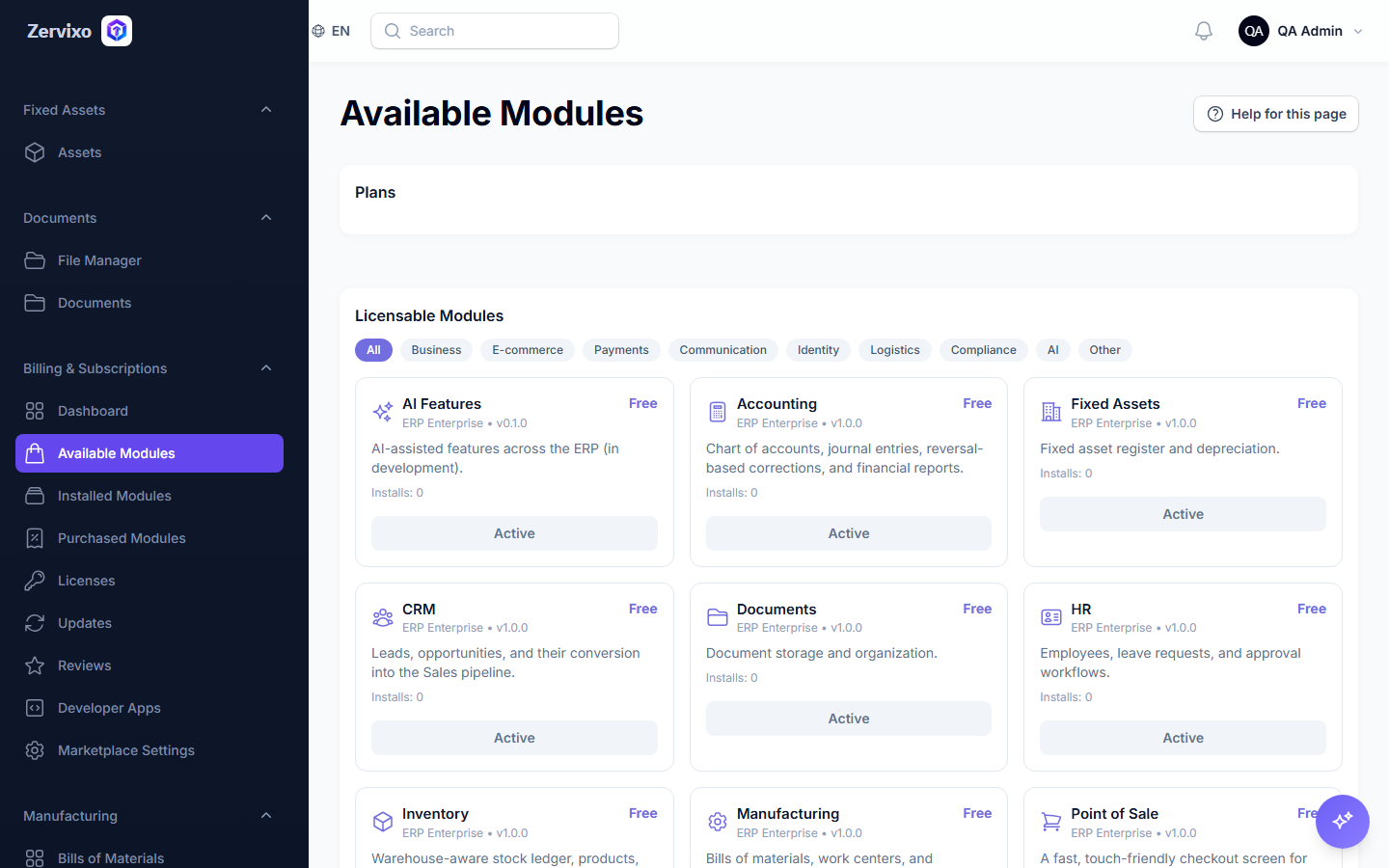
Activating an add-on module (e.g. Manufacturing or Payroll) from the module marketplace.
Reading time: 1 min · Updated 2026-11-21
What this page is for
Browse available modules, see pricing and required permissions, and subscribe.
Who can access this
Company Admin only (this page was corrected during the system review — it used to be open to any authenticated user).
Required permission
manage company settings
Field reference
- Module name: A short description of what it does
- Monthly price: Shown per module before subscribing
Button reference
- Subscribe: Immediately creates a subscription, an invoice, and a trial license — activation happens before payment; the invoice remains unpaid until it's settled
Workflow
- From "Available Modules," browse the marketplace.
- Click "Subscribe" on the module you want.
- It appears immediately in "Installed Modules," with a new invoice in "Invoices & Payments."
Practical scenario
A manufacturing company subscribes to the "Manufacturing" module — it appears immediately in the sidebar, and a subscription invoice arrives that can be settled via bank transfer.
Screenshot from the live system
Common errors and how to resolve them
- The module doesn't appear in the sidebar despite subscribing — Reload the page — permissions and menus refresh on each new request.