
Adding a new user to your company
Inviting a new teammate by email, choosing their role and permissions from the same form.
Reading time: 2 min · Updated 2026-11-21
What this page is for
The only real path to add a user — creates a time-limited, secure invitation; no real membership exists before acceptance. If the email already has a Zervixo account, it's linked to your company without creating a duplicate identity.
Who can access this
Company Admin, or any user explicitly granted invite company users.
Required permission
manage users, invite company users, or assign company roles
Field reference
- Full name: The invitee's name
- Email: Determines whether this is a brand-new user or an existing Zervixo account holder
- Phone: Optional
- Language & timezone: Applied to the new user's account after acceptance
- Branches: Which branches they'll have access to
- Roles: One or more roles granted immediately on acceptance
- Extra permissions: Individual permissions on top of the chosen role
- Send invitation email: On by default; turn off to copy the invite link manually instead of sending
- Invitation expiry: From 1 to 30 days
- Personal message: Optional, included inside the invitation email
Button reference
- Invite teammate: Opens the full invitation form
Record states
- Pending — not yet accepted
- Accepted
- Expired
- Revoked
- Failed delivery
Workflow
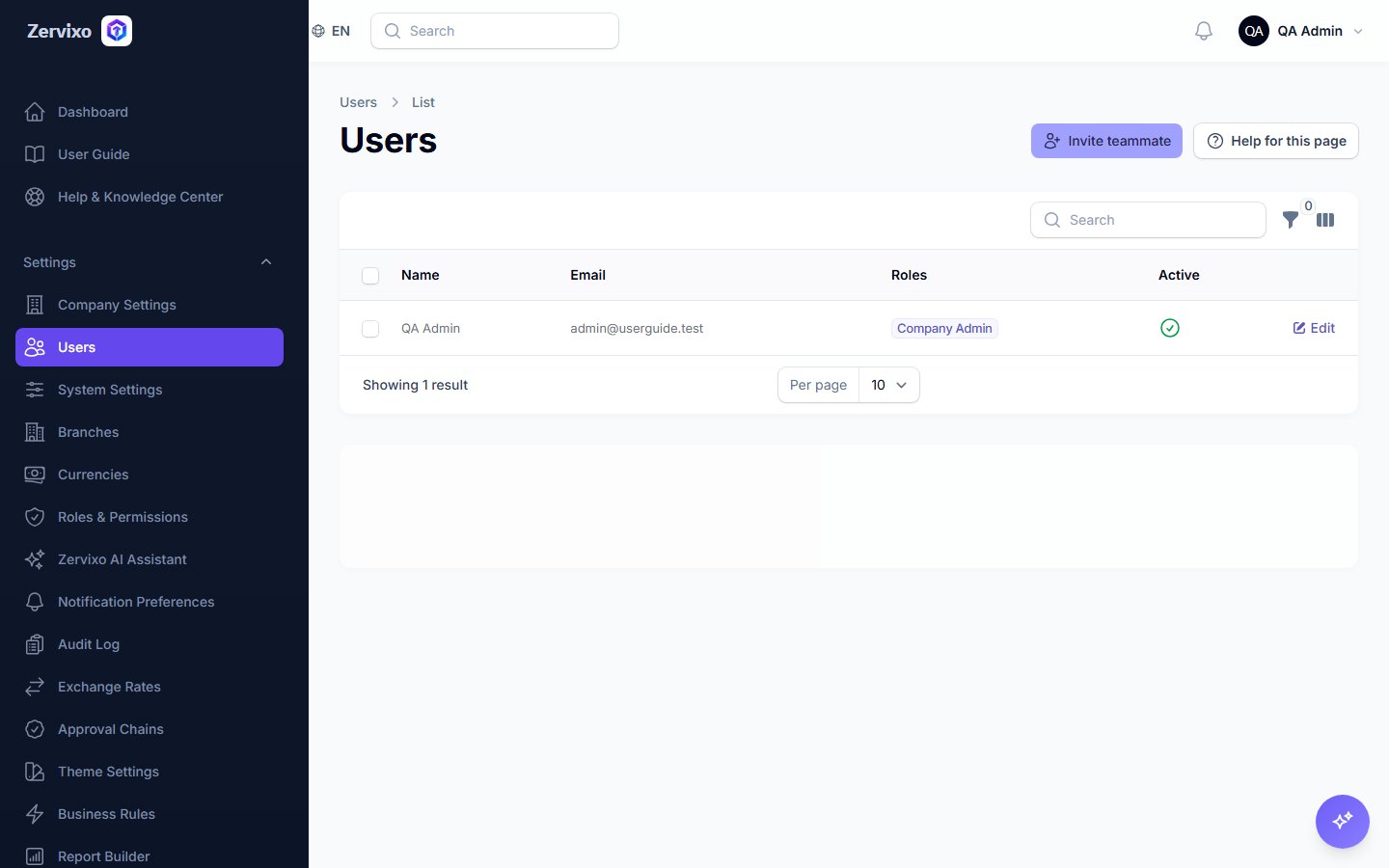
- From the "Users" page, click "Invite teammate."
- Fill in the name, email, role, and any extra permissions.
- Click send — a brand-new email gets an invitation email; an existing account holder sees the invitation inside their own app to accept.
- After acceptance, the user appears in your company's list with their role and permissions immediately.
Practical scenario
The restaurant owner invites a new accountant: enters her email, picks the "Staff" role, grants only "use AI assistant," and leaves the invitation email on. She receives an email, clicks "Accept," sets a password, and immediately appears in the restaurant's user list.
Screenshot from the live system
Common errors and how to resolve them
- Duplicate invitation to the same email — The system blocks a second pending invitation to the same email in the same company — use "Resend" on the existing one instead.
- The invitation expired before acceptance — Click "Resend" from the pending invitations list — this automatically extends it 7 more days.
Frequently asked questions
Can I cancel an invitation before it's accepted?
Yes, from the "Pending Invitations" list click "Revoke."